
메모장 만들기
WPF 기초 강좌용 프로젝트 "메모장"
이 프로젝트를 통해 다음을 배울 수 있습니다.
- TextBox 사용
- 버튼 이벤트 처리
- 파일 저장
- 파일 열기
- 기본 UI 배치
<Window x:Class="MemoProject.MainWindow"
        xmlns="http://schemas.microsoft.com/winfx/2006/xaml/presentation"
        xmlns:x="http://schemas.microsoft.com/winfx/2006/xaml"
        Title="WPF 메모장"
        Height="450"
        Width="800">

    <DockPanel>

        <StackPanel Orientation="Horizontal"
                    DockPanel.Dock="Top"
                    Margin="5">

            <Button Content="새로 만들기"
                    Width="100"
                    Margin="5"
                    Click="New_Click"/>

            <Button Content="열기"
                    Width="100"
                    Margin="5"
                    Click="Open_Click"/>

            <Button Content="저장"
                    Width="100"
                    Margin="5"
                    Click="Save_Click"/>
        </StackPanel>

        <TextBox x:Name="txtMemo"
                 AcceptsReturn="True"
                 AcceptsTab="True"
                 VerticalScrollBarVisibility="Auto"
                 HorizontalScrollBarVisibility="Auto"
                 TextWrapping="Wrap"
                 FontSize="16"/>
    </DockPanel>

</Window>
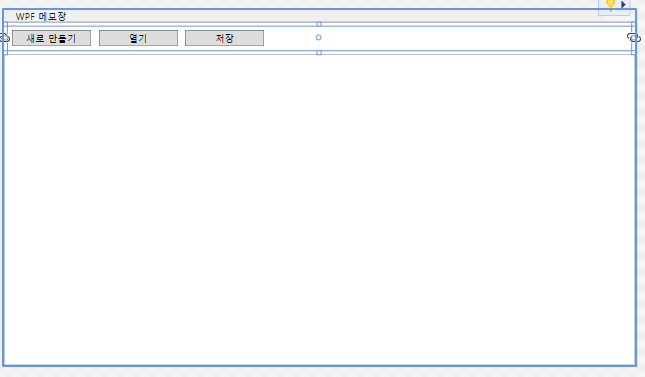
위 코드 스크린샷
1. 새로만들기 기능
private void New_Click(object sender, RoutedEventArgs e)
{
    txtMemo.Clear();
}
2. 파일 저장기능
// 상단에 추가
using Microsoft.Win32;
using System.IO;

// 저장 버튼
private void Save_Click(object sender, RoutedEventArgs e)
{
    SaveFileDialog saveFileDialog = new SaveFileDialog();

    saveFileDialog.Filter =
        "텍스트 파일 (*.txt)|*.txt";

    if (saveFileDialog.ShowDialog() == true)
    {
        File.WriteAllText(
            saveFileDialog.FileName,
            txtMemo.Text);
    }
}
3. 파일 열기 기능
private void Open_Click(object sender, RoutedEventArgs e)
{
    OpenFileDialog openFileDialog =
        new OpenFileDialog();

    openFileDialog.Filter =
        "텍스트 파일 (*.txt)|*.txt";

    if (openFileDialog.ShowDialog() == true)
    {
        txtMemo.Text =
            File.ReadAllText(
                openFileDialog.FileName);
    }
}
`
'Programming > C#.NET' 카테고리의 다른 글
| [C#] WPF MVVM 메모장 만들기 강좌 (0) | 2026.07.09 |
|---|---|
| C# WPF MVVM이란? 유지보수가 쉬운 데스크톱 애플리케이션 개발 패턴 (0) | 2026.07.08 |
| [C#] WPF 기초 강좌 #2 (0) | 2026.07.05 |
| [C#] WPF 기초 강좌 #1 (0) | 2026.07.01 |
| [C#] DES 암호화/복호화 (0) | 2026.06.30 |